Meeting recorder for Mac
Record the meeting. Your Mac writes it down.
Nokka starts recording the moment you press the button, and by default transcribes and separates speakers on your Mac while people talk. Connect your own Claude, OpenAI or ChatGPT account only when you want minutes.
- macOS 14 or later
- Apple silicon only
- App in Korean
How it works
From recording to minutes, in one app
Record when the meeting starts, transcribe while people talk, tidy up when it ends.
01Record
Recording starts the moment you press it
Nokka doesn't wait for the transcription model to download or get ready. Anything the live transcript missed, such as the part before the model was ready, is transcribed from the original audio on your Mac after you stop. Whichever transcription engine you use, no audio is sent for this.
- When Zoom, Microsoft Teams, Slack huddles, Webex, Discord or Google Meet in a browser start using the mic or speakers, Nokka offers to record. For each app, choose ask, record automatically, or never.
- Record audio only, or the screen too (full screen, a region or a window). ⌘⇧R opens a chooser for the recording mode where your pointer is. Computer audio and microphone are switched on and off separately.
- Check your sound before recording. While recording, Nokka watches for a dropped mic or silent computer audio, and carries on when the same earbuds reconnect.
- Warnings show up where you're looking: the transcript window, the floating bar, the menu bar or a notification.
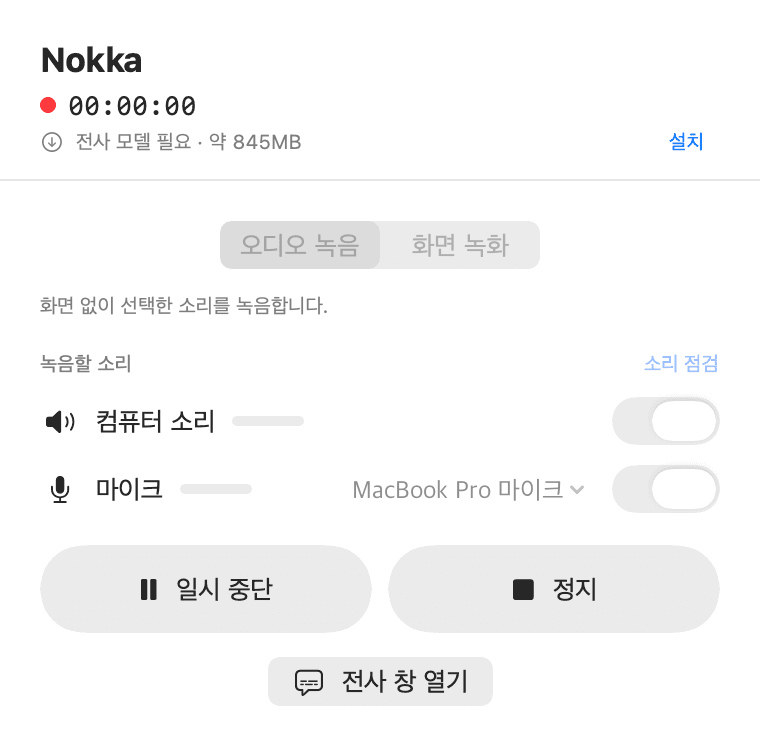
The model isn't installed yet, and the recording is already running. 
The floating bar shows a red icon when a warning needs your attention. 02Transcribe
It writes down who said what, as they say it
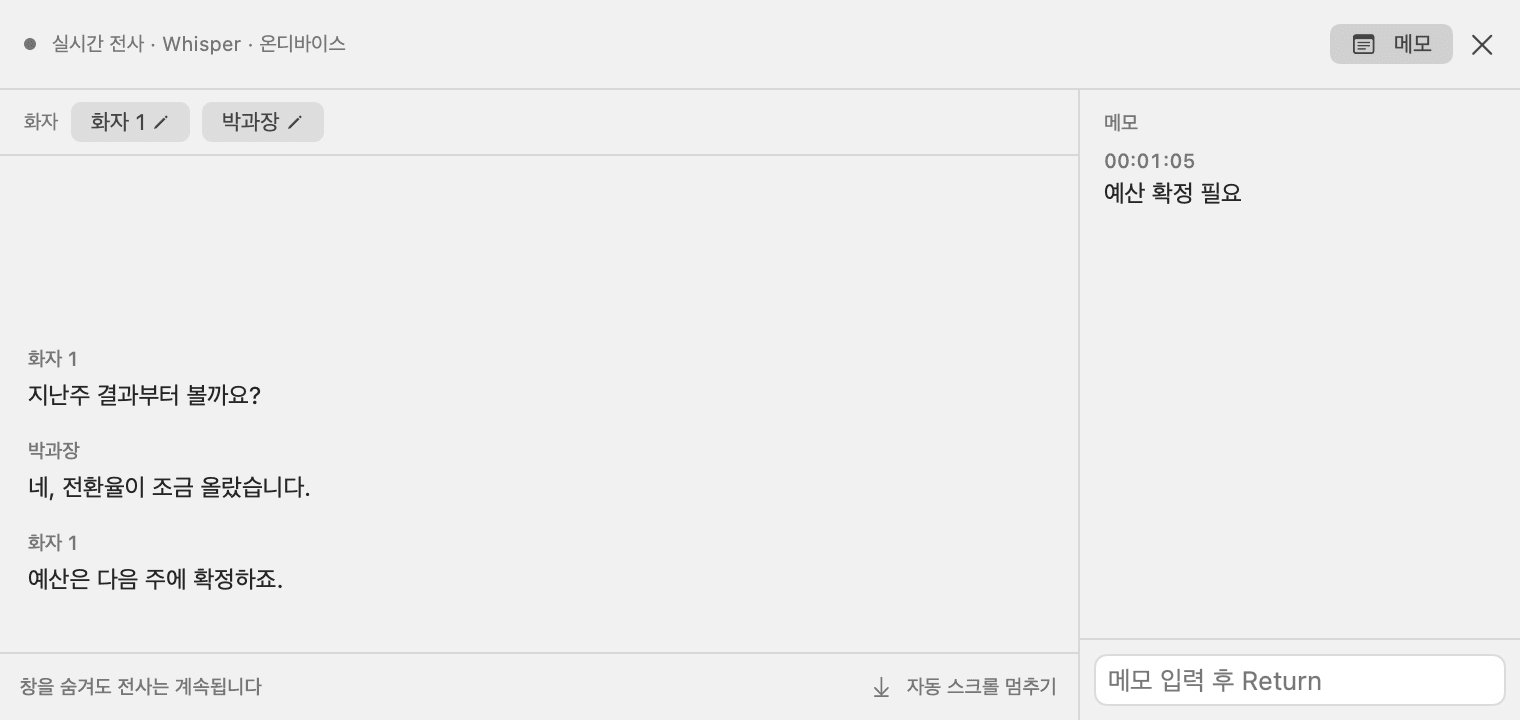
With default settings, live transcription runs on your Mac with Whisper, and speaker separation with Nemotron 3. Click a speaker in the bar at the top, or the speaker's name on a line, and a naming row opens right in the window. Type a name or pick a calendar attendee, your own name or a recent one; it carries through to the library, transcript files and minutes.
- Notes typed in the panel next to the transcript are timestamped and included when minutes are written. ⌘⇧B bookmarks the current moment.
- Move a single misattributed line to another speaker, or split it out as a new person. Copy a line, a selection or the whole transcript.
- When the recording ends, Nokka separates speakers once more over the whole recording, fixing numbers that changed midway and two people merged into one. Names you gave during the recording stay. You can also name speakers while listening to a 5-second sample of each; voices aren't stored.
- Add attendee names, product names and in-house terms to the glossary; they're used as transcription hints and as a reference for minutes.
- Choose Deepgram or Soniox to transcribe in the cloud with your own API key. Only then does audio go to that service, and speakers are still separated on your Mac by Nemotron 3.
- If the cloud connection drops, or there's no internet when a recording starts, an engine on your Mac (Apple on macOS 26, or Whisper if installed) takes over within 1–2 seconds and captions keep coming. When the connection is back, Nokka returns to the cloud on its own, with the same speaker numbers and names. A problem with your API key or balance shows an alert.
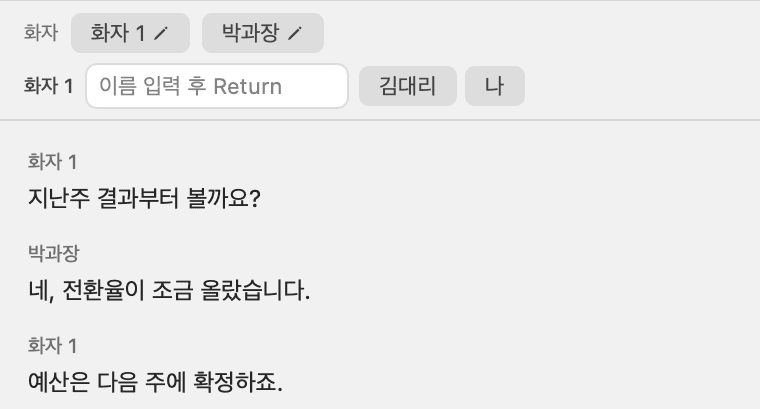
Clicking 'Speaker 1' opens a naming row right below it. The name you choose goes on every line from that speaker. 03Tidy up
It asks only what it must, then writes the minutes
With an LLM connected, Nokka tidies the transcript and asks only about things that would change the minutes if wrong and can't be answered from anywhere in the recording, such as a password, date, amount or name. That's at most 10 questions per recording, and sometimes none. Everything else is decided from context and the rest of the recording, and can be reopened later. Once you answer, it writes minutes and tags each item with the time of the line it's based on. The original transcript is never overwritten.
- Connect Claude or OpenAI with your API key, or sign in with a ChatGPT subscription (experimental).
- You can also make quick minutes straight from the transcript, without waiting for the tidy-up. Numbers, dates and owners that need checking are collected under open questions.
- Long meetings are tidied up in a few minutes. If the network drops or the app is restarted, it picks up after the last finished part.
- Click a citation chip to play from 5 seconds before that line. Keep several templates, including a knowledge-base one that puts decisions and action items first, and edit the minutes yourself.
- Turn on automatic tidy-up and its questions appear in a small panel on the right of the screen, even while another app is in front.
- Confirmed terms and meeting context stay on your Mac as Markdown memory, used for the next tidy-up and minutes. 'Ask your meetings' shows which memory items and meetings it would send, and sends nothing until you press Send.
Example minutes, in Koreansummary.md주간 회의
요약
- 지난주 결과 검토, 전환율 소폭 상승 확인Time of the supporting line 00:12
결정사항
- 예산은 다음 주에 확정함Time of the supporting line 00:21
확인 필요
- 예산 규모와 담당자 미정
Minutes are written in Korean, in the default template: summary, decisions, background, action items, open questions. The content is an example.
Data paths
What leaves your Mac is spelled out in Settings
Processing happens on your Mac by default. Cloud services are used only when you connect your own key or account, and the Data paths card in Settings › General shows what goes where with your current settings.
Step: Recordings
- Default
- This Mac · your recordings folder
- If you connect a service
- Not applicable
Step: Live transcription and speakers
- Default
- Whisper + Nemotron 3 · this Mac
- If you connect a service
- Deepgram or Soniox · audio sent while recording, speakers still on this Mac (Sent off this Mac)
Step: Filling gaps after a recording
- Default
- Whisper, else Apple · this Mac, whatever the engine
- If you connect a service
- Not applicable
Step: Re-transcribing from the library
- Default
- Apple or Whisper · this Mac
- If you connect a service
- Deepgram or Soniox · audio sent (Sent off this Mac)
Step: Tidy-up, questions, minutes, Ask your meetings
- Default
- Off until you connect one
- If you connect a service
- Claude, OpenAI or ChatGPT · transcript and related memory sent (Sent off this Mac)
Step: Term and meeting memory
- Default
- This Mac · Markdown files
- If you connect a service
- Not applicable
Step: Notion and Slack export
- Default
- Off until you connect one
- If you connect a service
- Sent only when you export (Sent off this Mac)
Local-only mode
Blocks everything except model downloads and update checks. Deepgram and Soniox switch to engines on your Mac, and tidy-up, minutes, Ask your meetings, Notion and Slack are turned off.
- Deepgram, Soniox, Claude and OpenAI keys and the ChatGPT sign-in are stored in the macOS Keychain.
- No analytics or tracking SDKs in the app.
- The Deepgram and Soniox connection check only verifies the key and sends no audio. The same check is used to see whether a dropped connection is back.
- After-recording transcription with Soniox deletes the uploaded audio and transcript from Soniox once the results arrive.
- Models for on-Mac transcription are downloaded from the internet on first use (about 845 MB). With a cloud live engine on macOS 26, Apple's speech recognition assets are downloaded ahead of time so your Mac can take over if the connection drops.
- Update checks read the release list from nokka-web on GitHub. Automatic checks can be turned off in Settings › General › Updates.
Files and export
Everything ends up as ordinary files
One recording, one folder. Transcript, subtitles, minutes and metadata sit side by side, ready for your knowledge base or automations.
Export to
- Markdown · Obsidian
- Word (.docx)
- Hangul (.hwpx)
- Notion
- Slack
- One-track audio (.m4a)
- Trim · GIF (screen recordings)
Pick what to include: minutes, transcript, timestamps, speaker names, bookmarks. Slack always gets the minutes only. Point Nokka at an Obsidian folder and it saves a note whenever minutes are created.
Nokka_2026-10-26_10-30-00/
- Nokka_2026-10-26_10-30-00.m4aAudio recording; the first track mixes computer audio and mic (.mp4 for screen recordings)
- Nokka_2026-10-26_10-30-00.txt · .srtTranscript and subtitles
- transcript.jsonTimes, speaker and text per segment
- summary.mdMinutes, if created
- nokka.jsonTitle, attendees, speaker names, notes
Also included
Small things you'll use every day
Menu bar and shortcuts
Start and stop right from the menu bar. ⌘⇧R record, ⌘⇧P pause, ⌘⇧M mic, ⌘⇧B bookmark. Shortcuts can be changed and need Accessibility permission.
Separate tracks, plus a mix
Computer audio and microphone are saved as separate tracks, and in audio recordings the first track mixes both, so other transcription tools that read only one track still hear everyone. The mic gets RNNoise noise suppression; the unsuppressed original is kept as well and used for transcription.
When the meeting ends
Automatically recorded meetings stop after a 10-second countdown, and short automatic recordings ask before they're kept. You can also have recording stop after a long silence.
Calendar (optional)
Uses the current event's name as the recording title and its attendees as speaker-name suggestions, and reminds you 5 minutes before events with attendees.
Copy a recording notice
Other participants don't see a recording indicator on their screen. Copy your notice text and paste it into the meeting chat.
Search and playback
Search titles and transcripts in the library, and click a result or bookmark to play from there. The sentence you're hearing is highlighted, at 1×, 1.25× or 1.5× speed.
Screen recording
Full screen, a region or a window, with H.264 hardware encoding. Text-heavy documents, code and tables stay readable, at about 5 GB per hour for a webinar window. Windows in other Spaces can be picked, and a webcam overlay is available.
Recordings that survive a crash
Files are written in 2-second fragments, so a recording stays playable up to the moment the app quit unexpectedly, and the next launch tells you how much was saved.
Before you start
Requirements and known limitations
Requirements
- macOS
- 14 Sonoma or later
- Mac
- Apple silicon. Intel Macs are not supported.
- Permissions
- Microphone. Screen & System Audio Recording only when you record computer audio or the screen. Setup asks only for what your chosen use needs; shortcuts, calendar and webcam ask when you use them.
- Storage
- The DMG is about 30 MB. On-Mac transcription downloads about 845 MB of models (Whisper + Nemotron) on first use. With Deepgram or Soniox and speaker separation on, Nemotron (about 199 MB) is still downloaded once. Nothing is needed if you only record.
- Language
- The app's interface and minutes are in Korean. The transcription language is chosen per recording: Korean, English, Japanese, Chinese, Spanish, German or French.
- Install
- The app is signed with a Developer ID and notarized by Apple. When a new version is out, the app shows what changed and, once you choose to install, checks its signature before replacing itself. The release notes list the file's SHA-256.
- Built with
- SwiftUI and ScreenCaptureKit. A native macOS app.
Known limitations
- Each recording is transcribed in one language. With Korean selected, Whisper and Deepgram drop English sentences, and the Apple engine transcribes them with broken spelling.
- While the Apple engine on your Mac is standing in for a cloud engine, lines run long, so two people speaking back to back can end up in one line under one speaker.
- If a cloud connection drops and no engine on your Mac can take over (for example, Whisper isn't installed on macOS 14 or 15), live captions try to reconnect for about 2 minutes, and the missing part is filled in on your Mac after the recording.
- After-recording Whisper transcription can pull the first sentence's start time back into the silence before it.
- Live speaker separation handles the mic and computer audio separately. The same person picked up by both isn't merged automatically.
- If computer audio stops during a recording, for example after switching output devices, Nokka warns you but doesn't restart the capture. Stop and start the recording again.
- On macOS 14 and 15, after-recording transcription with the Apple engine can cut off results for long files.
- ChatGPT subscription sign-in is experimental and may stop working if OpenAI changes its policy. API-key connections are unaffected.
Try it on your next meeting
Open the DMG and drag Nokka to Applications. On first launch, choose what to record and how to transcribe, and Nokka asks only for the permissions that needs. New versions install from inside the app.
- macOS 14 or later
- Apple silicon
- DMG about 30 MB